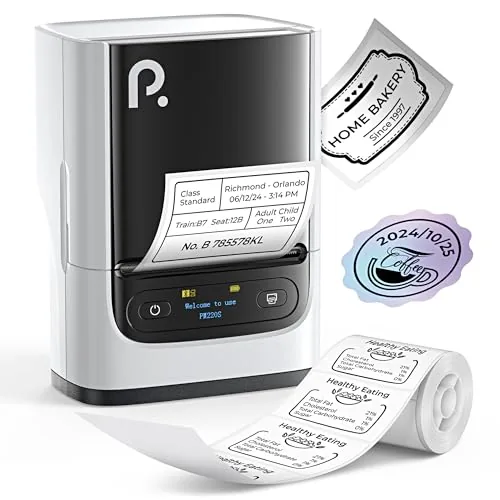
The exact option covered here
POLONO PM220S
Check label dimensions, your sending device and the selected package before ordering.
Check PM220S on Amazon
A single-model buying guide
Start with the label you need to make. This guide helps you check the PM220S format, choose the right connection path and separate a label-size problem from a printer problem.

Use your product packaging, storage box or shelf as the starting point. Measure the space where the label must fit, then decide what someone needs to read on it.
A 4 × 6 inch label is at least 101.6 mm across. That exceeds the PM220S media limit in the table below, even if you rotate the label. Shrinking a shipping PDF is not the same as printing it at its required size.
| Check | Documented detail | Your decision |
|---|---|---|
| Label width | 23–54 mm | Check the actual roll dimensions, not just an approximate “2 inch” name. |
| Maximum print width | 48 mm in the manual | Keep text and code artwork inside this width; label width is not printable width. |
| Printing method | Monochrome direct thermal, 203 dpi | Choose thermal label supplies. For color photo projects, explore a photo-printer guide. |
| Starter label | 50 × 30 mm in the brand’s listed package | Confirm the selected retailer bundle and order enough suitable labels for your first job. |
| Phone route | Labelnize and an in-app Bluetooth connection | Use the official model-specific download route rather than a similar app name. |
| Computer route | USB, with model-specific software and driver | Check your operating system before ordering. Do not assume phone Bluetooth instructions apply to a computer. |
Width, resolution and starter-label details: POLONO PM220S product page. Print-width limit: official PM220S manual, specifications.
Sketch the label at its intended size. Put the essential information first: a product name, date, short instruction or identifier. If you need a barcode, leave room around it and test the printed result with the scanner you will use.
A 50 mm label is wider than that printable span. Do not assume your design has equal margins: confirm its position with a test print.
Match the printer model, roll dimensions and label type before ordering a multipack. Check whether the label’s stated adhesive and surface suitability match your packaging. A label that fits the printer still needs to suit the place where you stick it.
Keep your first order small until you have checked the layout. Tiny text and a crowded code can make an otherwise tidy label difficult to use. Your useful cost is the refill price divided by the labels you can actually use, including setup mistakes.
Start at the official support page and select PM220S. Its iOS and Android QR codes lead to Labelnize. The product page also names Labelnize and says to connect inside the app, rather than pairing in your phone’s Bluetooth settings.
Check the current store listing against your own phone before installing. If your supplied instructions point somewhere different, use the PM220S support route to confirm the correct app for that unit.
The PM220S support section lists separate drivers for Windows and Mac, plus Labelnize software links. Select the PM220S section before choosing a download; the page also serves other printers.
Use the computer’s USB workflow and the official installation instructions. Downloading a mobile app or seeing a Bluetooth symbol does not establish that your computer is ready to print.
The official QR destinations are Labelnize on Apple’s App Store and Labelnize on Google Play. Both stores list in-app purchases; check which tools you need before assuming every feature is free. A software listing does not guarantee compatibility with every operating-system release.
Start with one label and a simple design. Change one setting at a time and keep the failed sample. That makes it easier to tell whether the issue is the connection, the label or the layout.
Check that you are following the phone or computer route above. The manual allows one connected device at a time. Disconnect the previous device before trying another. If the device still is not found, record your model, operating system and app name for POLONO support.
The PDF’s loading section says face down; its blank-label FAQ says face up. Follow the diagram supplied with your unit, or ask POLONO to confirm orientation.
Before replacing the printer, also confirm that the roll is the intended thermal label supply. Keep the packaging so you can identify the media when asking for help.
Match the template to the loaded label. The manual recommends reloading the roll, then pressing Feed once to locate the label gap. Test one label before sending a batch.
For small text or a code near an edge, simplify the design and check its position. Before any cleaning, turn the printer off, let its head cool and follow the manual’s care section.
Manual references: PDF pages 4, 6, 9–10 and 12–13, counting the cover.
The exact option covered here
Check label dimensions, your sending device and the selected package before ordering.
Check PM220S on AmazonIf your main task is a different print format, return to the photo and label printer directory. A small product label, a shipping label and a keepsake photo need different buying checks.
If you buy through a product link, FasterBuyers may earn a commission at no extra cost to you.
Sources and scope
Manufacturer documents and app destinations checked October 16, 2026. Use the linked sources to confirm your exact unit and software before setup. The checks and size comparison are editorial buying guidance, not measured printer performance. How this site researches products · Affiliate disclosure
Your browser, your choice
Google Analytics helps FasterBuyers understand page visits and product-link clicks. Choosing “No thanks” keeps it off. Changing your choice here affects future collection; it does not delete information already sent.
No choice saved in this browser.