US listing · ASIN B0C3L93F2Q
Nelko P21 Label Maker Machine with Tape
Confirm the selected printer, included roll and current order details. Keep any unresolved phone or refill question on your checklist before you pay.
Check the P21 listing
A source-based buying guide
Start with the label you want to make. Then check your phone, the exact roll and the space your text needs before choosing a compact label maker.
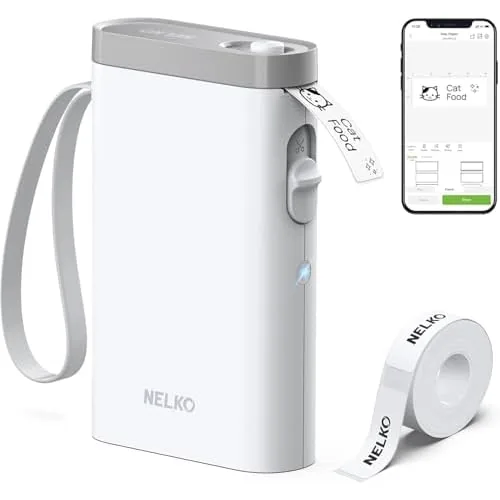
NELKO describes the P21 as a direct thermal printer for small organization labels. It needs compatible label rolls, without ink, toner or ribbon. Its documented workflow uses the NELKO app on an iOS or Android phone.
Make a shortlist of the things you want to identify: folders, storage boxes or small project supplies. Write one realistic label for each. This gives you a better starting point than choosing a printer because its case looks compact.
NELKO says the P21 is unsuitable for standard 4×6 shipping labels.
For color keepsakes, start with the PP01 photo-printer guide. For parcels, use the printing directory to find a dedicated shipping model, then verify your platform and required format.
| Document | Listed dimension | Your buying check |
|---|---|---|
| P21 manual | 15 mm paper width, with “12 mm available”. | Ask NELKO how this dimension applies to your roll and app template. |
| Current product page | A 14×40 mm roll in the box contents. | Match the refill and selected retailer package separately. |
These descriptions do not establish one universal printable area for every roll. Ask NELKO which area your selected roll and template support. Sketch your intended words at a readable size, then check the layout against that confirmed area. Include a second line if your labels need one.
Look for explicit P21 compatibility on the refill. Compare its shape and dimensions with your intended layout, then check the quantity. A familiar brand name or a similar-looking roll is not a complete compatibility check.
Keep the text short enough to read where you will use it. Try a realistic item name, including any date or extra line you need. If that layout looks cramped, reconsider the format before buying several refill packs.
The support page claims gap and continuous labels, while the linked manual’s parameter table specifies gap paper. Confirm your printer revision and chosen roll with NELKO before relying on continuous-label compatibility.
Use the product information and manual together. Leave an unresolved compatibility question on your checklist until you have an answer for the exact roll.
The manual directs you to install NELKO, enable Bluetooth and select P21 inside the app. It then describes creating a blank label or using a template.
Check that the current official app can be installed on the phone you intend to use. Decide whether that phone will be available whenever you need a label.
Plan one representative label before a large batch. Check its wording, orientation and dimensions against the selected roll. Keep the first result beside the item it belongs to; readability in its final position matters more than an attractive preview.
For a different label format, read the POLONO PM220S model guide and compare its documented limits. Similar model names do not establish shared paper, apps or instructions.
The manual shows the printing face upward. For initial label-position calibration, it specifies a quick double press of the power button. Its later alignment advice separately checks the app’s paper type and uses one Power/Feed press. Follow the diagram for the situation you are handling.
See the manual’s printed pages 04–06 for the loading diagrams and separate calibration and alignment steps.
If a problem persists, record the model label, app version, chosen roll and a photograph of the result. Take that information to the official P21 support page. It makes your question more specific than repeatedly replacing supplies without identifying the symptom.
Compare complete refill purchases, including delivery when relevant. Use a simple planning formula: refill cost ÷ labels you expect to keep = estimated cost per usable label. Leave room for layout tests and misprints rather than assuming every label becomes a finished result.
Planning example: a $12 pack with 200 labels costs $0.06 per label before waste. If 180 labels become finished results, $12 ÷ 180 is about $0.067 per usable label. These are illustrative inputs, not a current refill price or measured failure rate; substitute your actual pack price, quantity and expected waste.
Keep the checkout total visible beside that estimate. You pay for complete packs even when a small project uses only part of one. If the intended surface or layout is uncertain, start with one compatible roll and check the result before stocking up.
NELKO says resistance to water, oil and scratches varies with label material and use. Test one label on the intended surface before an important application.
US listing · ASIN B0C3L93F2Q
Confirm the selected printer, included roll and current order details. Keep any unresolved phone or refill question on your checklist before you pay.
Check the P21 listingFasterBuyers may earn a commission through this PartnerBoost link. Read the affiliate disclosure.
Documentation reviewed October 19, 2026. Use this source-based buying guide to compare the documented limits and plan your own checks. It does not provide measured print-quality, battery-life or durability results.
Your browser, your choice
Google Analytics helps FasterBuyers understand page visits and product-link clicks. Choosing “No thanks” keeps it off. Changing your choice here affects future collection; it does not delete information already sent.
No choice saved in this browser.